Showing posts with label security. Show all posts

Sunday, 6 November 2011

Methods to Enhance Facebook Account Security

Hacking someone’s Facebook account and then posting unacceptable content is the most popular method to take revenge these days. Recently somebody hacked into my friend’s Facebook account and posted absurd messages others wall.Later he was able to recover his account but the damage has been already done.He has to explain to everyone that it was not him who had send them those messages.This can happen to anyone and its better to take preventive measures rather to face embarrassing situations later.


How to Secure your Facebook Account from Hackers:

  • Login into your Facebook Account and go to Account Setting.

Methods to Enhance Facebook Account Security

  • Choose Security tab from left window pane.

 Methods to Enhance Facebook Account Security

Method 1: Enable Secure Browsing

  • In your Security Settings click on Secure Browsing tab.

Methods to Enhance Facebook Account Security

  • Do check mark on the Browse Facebook on a secure connection (https) when possible Checkbox and then click on save changes button.

Methods to Enhance Facebook Account Security

Methods to Enhance Facebook Account Security

Method 2: Login Notification:

By enabling login notifications you will receive alerts whenever your Facebook account is opened from an unknown device.You can associate your computer or mobile with your Facebook account.If your account is opened from another device you will receive an email with information about the location of the device.This should be enough to trigger suspicions that your account has been compromised.

Steps to Follow:

  • Click on the Login Notification in Security Setting.

Methods to Enhance Facebook Account Security

  • Do check mark on Email button and then on save changes button.

Methods to Enhance Facebook Account Security

  • Now when anyone try to access your computer then you will get a email with the location of the user who logged on your account.

How To Set Recognized Devices?

If you don’t want to recieve notifications from certain devices like your own computer or mobile then you can set them as recognized.If you have enabled Login Notifications then every time you login into your account from new (unrecognised) device it will ask you to give device name and an option to save it as Recognized device.

However if at some later stage you feel that you want to remove a device from recognized list you can do it by following simple steps.

How To Remove Recognized Devices?

Steps to Follow:

  • Click on the Recognized Device in Security Setting.

Methods to Enhance Facebook Account Security

  • Here you will see a list of all the devices that you had made to Save Device.

Methods to Enhance Facebook Account Security

  • Remove that particular device from your list and then click on the save changes button.

Now that device is removed from your recognized list

Friday, 29 July 2011

How to find out if someone uses your login on Facebook

Only recently has this been on Facebook, a new approach that allows you to be alerted whenever you log on (with your login and password) from a computer other than your own.
So if your mischievous little friend stole your password and logged on pretending to be you, or you suspect that someone else is using your login to Facebook as well as, I advise you to change your password as soon as possible (go here and click on "change" next password) here is how to set security access to be alerted to your account from different computers:
  • Click here to go to the Settings page of your account

  • Click edit to the right of "Account Security" and the question you want to receive notifications relating to access of new devices? Reply YES

  • Click "submit"


    From this moment you will receive an email when a new computer will need to login with your login information, you can also be alerted via SMS. Remember, the first logout & login Facebook will ask you to name your computer to register it as safe.

Monday, 30 May 2011

How To stay safe from Facebook applications

Thousands of applications are on Facebook. That is good and can be in trouble? How will you distinguish these applications? Here, I'm gona tell you some things you need to follow to help you get to fall into disorder.


The first thing is when you use the application for the first time, will ask you certain rights. But most people ignore what is written, and then click "Allow". Here the problems begin. You need to understand what information we collect and how to use it. So I suggest you read the questions before the political context of the app.


Then, it is always a good idea to review the programs you have installed. Apps dashboard will give you all the details on the applications you use and what information Apps user, and how to remove applications you no longer wish to use.


The report Apps that do not conform to policy. If you find some applications that do not use your data / relevant information so that you can report that applications. Use the "Report" button on any application you are thinking about something inappropriate.


Tuesday, 5 August 2008

Halt…Who goes there? How to Create Strong & Secure Passwords - Part One

Protecting Your Privacy With Passwords!

Your cash, your personal history and your private identity information is stored in computers all across the Internet. And you control the access to all of these with a simple password.

So you think your password is unbreakable, huh? No one would ever guess what it is right? Let’s face it. Your password is probably not as good as you think. Strong passwords are seldom used even by people who should know better.

The story goes that in the 50’s then President Harry Truman boasted to a security specialist that no one could break his password. Rather quickly the specialist broke the code: it was based on the date of Truman’s inauguration: 1-20-1949

People create and use “weak” or easy to break passwords for two simple reasons:

1. They don’t know much about the password system in the first place.

2. They don’t understand how to make a strong password, i.e. one that would be tough to crack.

The Password System

A “password” is secret combination of characters that is actually half of a two part “key” that computers require for someone to login into a locked or “password-protected” account or network.

The first part of this “key” is your Username. A username can either be assigned by the organization that controls or administers the account or made up by you.

Since most usernames are created from readily discovered items like your email addresses, nicknames, etc. security experts tell us that the “password” half, has become the most the important part of the key.

A password is almost always created by the end-user…that means you! As such, you control just how “weak” or “strong” it will be. A weak or poorly thought out password can be cracked in less than one second with software any ten year old can download for free.

A “weak” password is an easily cracked password. And No Password; No Privacy!

Too Legit To Quit? How to Know if a Website is Safe, Part Two

Recently a friend emailed me a link to a software website. On the site they proclaimed to be selling OEM (Original equipment manufacturer) software at a very steep discount.
OEM software is typically the software that is bundled with or installed on a new PC. OEM software also has different “licenses” than regular “boxed” software sold through a retail outlet. Most the time the license is tagged to the hardware it was sold with.

The computer hardware is actually the “license owner” in a weird kind of way. That’s why on eBay, when I buy software, most of the time, I get a piece of hardware (part of the PC the OEM software came with.) along with the CD.

Now there is nothing wrong getting OEM software. Lots of times, vendors who buy off-lease equipment (computers, etc. whose rental leases have expired) and will split off the software that came with the computer and resell it elsewhere.

BUT….ah, you knew I would stop yakking and get to it!

How the heck do you tell if a website is on the up and up and selling legit products software?

Or is it just some scummy Internet con artist with a slick website crammed full of pirated crap-ola, poised to capture and fence off your precious credit card number?

To check out a website to see if its legit follow these 7 simple steps:

Step 1 - Just how slick is it?

Look at the web page design. You can buy some very professional cool and slick looking website templates very cheaply. Is if full of picture of people with “clear-skinned smiles”, or lots of bouncing, hopping, graphics?

Even if they use a professionally designed template or website, most small businesses do some type of customizing to their websites. They add pictures of themselves, their storefront, their offices, etc. They change and mismatch colors, add clip art, etc.

Professional fraudsters don’t. There is no need. They have their good buddy Ivan or Sam create a very nice vanilla site, where they throw up stock photos and get on with the business of robbing you of your identity and credit card info. No need to customize any for that. .

Now amateurs (baby crackers/hackers) tend to like LOTS of customization. Dark, broody backgrounds with neon fonts in hard to read styles and as many annoying banner ads or animated graphics/cartoons as possible. They like to offer “free” stuff, i.e. software, music, etc. so they can also download their little Trojans along with them.

Step 2 - Search for “Reviews” or “Comments” on the web

I always “google” the actual web address of a site to see what folks are saying about it. If something is hot or popular, someone has either written a review, a blog or posted a comment on it somewhere in a public forum. These could be from satisfied users or from paid affiliates.

You can also add the words: “sucks”, “ripped off”, etc. to the list. Granted you will only find the negative people posting these but they act as a balance for any over hyped items you find.

Step 3 - Icons and links are dead

Bogus sites seldom take the time to keep links live to other sites. If they have icons that proclaim them members of a “Better Business” this or that, click on the icon or link shown. If it is dead or just goes somewhere else on the website, get your “suspicious” antenna up.

Legitimate sponsoring organizations usually require their members keep a “live” (clickable) link back to them. Or you can open another browser window and visit the sponsoring group’s membership list on your own. Are they listed or reviewed there as promised?

Step 4 - No way to keep in contact

Most folks install ways for you to keep in contact with them and their company. Newsletters, ezines, blogs, sales letters, phone numbers or just posted emails for “feedback”, “support”, “customer service”, etc.

Also, be leery of the “online comment” form. Many people use these “fill in the blank” forms. However, if this is the only way you find to reach them, this is not good. No contact information is a very bad sign

Step 5 - No Physical Location

Due to fears of, (I don’t know what) some people never list their business’s street address on their websites. Bad sign, folks. I always look for an address. No “addy”, no “moola”.

Now the street address could be as fake as “1313 Mockingbird Lane” (the Munsters home address) for all I know, but human nature being what it is, most are probably mailbox deliverable.

Instead of a street address, some people use a Post Office or private mailbox address. No problem but they had better have a working phone number to act as backup.

Have I ever called a number posted online just to see who picked up? You bet ya. Called this one guy once at o’dark in the morning and got a very groggy solopreneur (wrong number, don’t ya know). But hey he sold me a book, because after the call, I knew he was “real” person.

Called another and got a “this number has been temporary disconnected”. Hmmm….can we say “bugged out”?

Step 6 - Try WHOIS

Who’s on first…? Huh? What’s a WHOIS?

WHOIS is a domain name lookup tool. It can be found all over the web but I use www.whois.net or www.networksolutions.com

The idea is the surf to www.whois.net, plug in “Technoweasel” in the “WHOIS Lookup” you will find my website’s Registrant (that would be me) the address I used when I created my domain name, and the domain (website) host that I am using.

Now all of this could be bogus…but since you have to pay for a domain name with a working credit card, the address and name were legit at the time of registration.

Check out the age of the site. I created my domain in 2001. If a site has only been in “business” for a few months…do a real gut check before passing out any credit card info.

Step 7 - Are they are a Blacklist?

Check out www.spamhaus.org and squidguard to see if their domain names are listed. If their name is on a well-respected blacklist, then you are probably better off blacklisting them too.

Is the web host in China, Eastern Europe, South America or South East Asia? Fifty percent of all spammers are Americans but they like to host their “ugly American” email and websites overseas.

Step 8 - The last one…

Yeah, I know I only promised seven, but it’s an oldie but a goodie…”If it’s too good to be true…” Just remember that bogus sites, email scams and all internet fraud in general rely on your human nature to want pick the sweetest berries without the thorns.

Honor your feelings. Your best defense is often your own intuition. If something about a website or email gives you that itchy-scratchy on the back of the neck or that sinking in the belly then don’t buy from them. The only times I have regretted buying something on line has been from violating this last rule! Honor your feelings.

Take five minutes and check out a site using the above steps before you just jump in and plop down your hard earned cash.

Halt…Who goes there? How to Create Strong & Secure Passwords - Part Two

Fact: no password is unbreakable. In theory, any password can be cracked given the right software; enough computing time and the money to pay for them. If someone REALLY wants to break into your accounts, they can.

But most of the bad guys you will encounter (hackers, nosy employees, distrustful business partners and curious kids) are not that hard to keep out.

1. Mix’em Up! When creating a password use mixture of characters like upper-case, lower-case letters(A-Z or a-z), numbers and special symbols such as: !,@,#,$,%,^,&,*,= , etc.

2. Psst…can you keep it a secret? Your passwords must be kept a secret. So MEMORIZE them! Don’t write them down on the back of your bank card, credit card or on a note stuck on your computer monitor. Tips for properly storing your passwords are covered more thoroughly later on in this article.

3. The more the merrier. Use multiple passwords. You should have one for each individual account. Yes, I know it’s a drag but you use the same over and over, you run the risk of a bad guy (a hacker or a jealous former lover) discovering it and running amok through all your accounts. Also take special care to use your strongest passwords on your more critical or valuable applications and accounts.

4. Size does matter… Bigger is better, for passwords anyway. For minimum security, the experts recommend a password be at least six characters long. For business use or financial accounts I would go up to seven or eight for more bangs for the buck. One or two extra keystrokes add a few million more combinations a cracking program has to work through.

5. Do it frequently. Change your passwords often. You should alter all critical passwords every six months or once a year at a minimum or non critical things. More every 90 days if it is critical.

So what is critical? Your money market accounts should be more critical to you then your membership to Critters Online! Some systems prompt you when change; others you have to remember and manually change it. Either way, do it frequently.

Additional Strong Password Tips

The science of creating strong passwords or any secret code for that matter has always been plagued with this problem: how to make it easy to remember (and decode) but difficult break.

A common way to design a strong password is to use a phrase cipher. For example, take the phrase, “Girls who wear glasses don’t get passes.” To create a password from this, use the first letter from each word. Then change one or more characters into an upper or lower case letter.

For added security you can add a numbers and/or special symbol. A few sample passwords could be: “gwwgdgp”, “gWWgdgp1″, “GwwGdGp!”

Another way is to use a substitution code and change a common word like “password” into “Pa55wo4d”. But bear in mind the more common substitutions are like “5″ for “S” are checked by most password cracking software. Use your imagination.

The best way to remember a password to use something memorable but don’t make it obvious. People love to use birthdays, anniversaries, street addresses, Social Security Numbers, their pets’ names, family member names, etc.

Your password should mean something to you but should not be so easily guessed or quickly discovered like your personal information. Use memorable things only you would know or would have meaning only to you.

Spyware Invasion: What to Do when You Have Been Hacked


Hey, it could happen to you. I know. I am professional PC technician and it happened to me. Yes, I write how-to articles and tell all my clients the same things: be careful of “freeware” programs, watch where you download stuff, change password frequently, etc. All the rest but despite my best efforts I got jacked!

It happened innocently enough. I was doing some work for a client and was trying to convert some music and video files into a more portable format. But all the good software was only had “paid” versions and I wanted to save myself some money. So I logged into some geek forums and started nosing around.

One guy recommended this little “freeware” program he had used to good success. So I clicked on his link and surfed over to a software directory I had never used before and downloaded it. The program was running fine, when I noticed that my hard drive was being hit really hard, with its activity light going nuts.

So I quickly stopped the program and uninstalled it. But within a few days I got emails from eBay complaining that I was sending out “spam” emails to other users all across the eBay system. When I logged in, I realized that “someone” had used my user name and password to fraudulently send messages selling some kind electronic gear from a seller in Poland!

Dang! I had been hacked!

What Not to Do…

Don’t panic. You have to remain calm so you access the damage and take the appreciate action. Running around downloading this and that “fix-it” software program can only make worst. Take a breath and get a grip…
…What To Do

I immediately took my PC off the Internet (I turned off my cable modem), then restarted and entered Safe Mode (hit F8 after the PC logo). I ran both of my anti-spyware and anti-virus programs for a deep scan of my PC. I found several Trojan Horse programs, which I removed.
Then I manually searched the “Program Files” folder to see if I could find any strange programs (don’t do this unless you know what to look out for). I then used the Windows “Add/Remove Programs” module and got rid of thing suspicious.

After I was sure had scrubbed down my computer and was clean, I logged back online and entered my eBay account. I changed by password and then changed the password for PayPal also. I tried to remember every online account I had visited over the last several days. Oops, my bank!

So I contacted my local bank and changed the password for their account too. Was this strictly necessary…hmmm, I wasn’t sure, but I could recovered from a shut-down eBay account a heck of alot faster than I could from empty checking account!

So after changing passwords for any websites I was working on and any other accounts, I could settle down and figure out what I had done wrong. I routinely use anti-virus and spyware killer software. I have a good firewall installed and I seldom download “freeware” from unknown sites, but I got in a hurry and I overrode my own rules. Being cheap was alot more than the few bucks the software would have cost once I tallied the “price” downtime and lost productivity.

But it could have been worse. I didn’t lose any money or my identity!

5 Spyware Mistakes Most Everyone Makes: Could this be you?

You have already heard enough about spyware to last you for a lifetime. So why is your machine acting so strange lately? The crashes, the sluggish behavior and the pop-ups are driving you mad.

You have got all the right stuff: all the software programs, the anti-virus, the firewall, etc. But your PC has been acting up and now there is some weird program installed on your desktop. If you want to get your computer back on track then you should see if you are making these five mistakes.

1) Did you forget to update your operating system?
Updating your computer can be a pain, I know. But of the things you could do to lock down and secure your PC, this one beats out all the others hands down. The boys from Redmond, WA (Microsoft headquarters), develop and send out operating system updates at least once a month, usually on a Tuesday.

Your best method is to turn on your Windows “Automatic Updates” module and let it handle the download and installation process for you “auto-magically”. But you prefer you can just remember to use the “Windows Update” browser (click on “START” > “Windows Update”) to manually download the latest patches.

2) Did you forget to use your anti-spyware program?
If you haven’t already done it, you should download a good spyware remover like Ad-Aware SE, Spybot S&D or SpySweeper. Once you have the program of your choice installed, you should take the time to run a complete scan of your hard drive. Now this could take several minutes up to an hour if your PC is heavily infected. So you should do this while no one is scheduled to use the PC since multitasking slows down the scanning process.

Quarantine and remove as much of the spyware as you can. If you run into any really stubborn to remove stuff, just restart your computer and press “F8″ after the PC logo, to enter the Windows Safe Mode area. Once in Safe Mode, just run the program.

3) Did you remember to install a good firewall?
You should use a personal firewall like ZoneAlarm or Avast! If you are using Windows Vista, then you should make sure the native firewall is turned on. A firewall is basically an application that acts as a “shield” that protects your PC from attacks from outside. It also can act as a barrier that makes it difficult for certain malicious programs access the Internet though your connection.

Bad programs often are designed to act as Trojan Horses (there is special class of software named exactly for this) that “open” the doorways (ports) of your PC for more dangerous programs to enter.

4) Did you visit one of the “3 G’s” lately?
Gaming, Gambling and Girlie websites are often hotbeds of spyware and viruses. Be very cautious when visiting websites like these unless they are run by a trusted (brand-name) publisher. A website named “Get-your-woo-woo-here” is more likely to use malicious programs then a website published by a million dollar company like Playboy Enterprises. Gaming “cheat” sites can also have digital tag-alongs for “advertising” purposes. Also exercise extreme caution in using off-shore gambling sites run by shady operators.

5) Did you download something from a P2P network?
Copyright issues aside, some users and some shady operators of peer-to-peer (P2P) file sharing networks deliberately upload infected files and programs to gain illegal access to sensitive stuff on other people’s computers. Don’t reuse any password you have used on a P2P, since most don’t secure usernames or passwords. And make sure your web browser is set to ask your permission before downloading any file. Know what you are downloading!

Spyware Hackers or You: Who is the most dangerous?


Are you sabotaging yourself with spyware?

“The Amish Virus
You have just received the Amish virus. As the Amish don’t have any technology or programming experience, this virus works on the honor system.
Please delete all the files from your hard drive and manually forward this virus to everyone on your mailing list. Thank you for your cooperation.”

As a computer technician, the first time I read this joke, I laughed out loud. Yep, I thought to myself, ain’t that the truth. I know from both personal and professional experience that spyware programmers can cause a lot of damage not only to a computer but also to your personal life if they have access to your sensitive files.

But all jokes aside, the most dangerous person who can access your machine is not some remote foreign hacker but you and your family. Often when I visit a client who is having spyware issues, I often find that the bulk of their problems are self inflicted.

Malicious programmers can only hide their products inside of innocent looking pop-ups, webpages or “freeware” programs hoping to lure some unwary computer user into downloading them. Like a fisherman on the river bank, they can only cast out appetizing bait hoping to hook you.

But it’s you, the computer user who can do whatever you like with your machine:

Like download files or programs from unknown sources…

Or turn off your firewall, because you find it annoying…

Forget to download and update security patches for operating system…

“Borrow” programs from your good buddy and install on your PC…

Visit high-risk websites catering to game “cheats”, offshore gambling or the “babe-of-the-day”…

Use weak passwords or don’t change them frequently enough…

Change the security and privacy settings on your web browser, so you don’t have to keep approving downloads…

Never look at the URL or address of website to make sure you haven’t been redirected to a spoof site…

Never read the EULA (end user license agreements), opt-in terms, privacy statements, and any notices with any software you download.

I feel, that to a certain extent, lack of proper knowledge on how to prevent spyware is a problem but still a good many clients just don’t care enough to stop their bad browsing habits. They like doing what they want on the Net and they just figure that spyware is the “cost” of doing business as usual.

But this “it can’t happen here” mindset is exactly what the bad guys are looking for. They have created the best “lures” they possibly can but you still have to “take the nibble” to get caught.

Spyware like the “Amish Virus” relies on people to make their own selves victims.

Computer Problem Tips - 10 Spyware Warning Signs - Are You Infected?

It's been estimated that over 60% of all computers have some kind of spyware installed and most of their owners are unaware! If you are tired of your PC running slow and filling your screen with those nasty pop-up then you will want to read the 10 warning signs listed below. Afterwards check out my "action plan" and what you can do to rid yourself of your spyware infestation.

1. Browser Hijacks - When I used to get a call from a customer saying that their homepage had suddenly changed, without them doing anything, I knew to bring my anti-spyware fighting software. Malicious programmers love to change your browser settings to transfer your homepage to their "client's" websites.

2. PC is Crashing - Without warning, your PC starts crashing, freezing or locking up, but you haven't added any new software or updated anything recently.

3. Pop-Ups - You open your browser to visit your favorite blog site then "WHAM!" You are suddenly drowning in pop-ups! Your screen is full of brightly colored lures to porn, gambling or gaming websites. You click on the "Close" or the "X" to shut it down...uh, oh something is downloading to your machine!

4. Strange Favorites - You notice that there is a strange looking icon in your favorites. You click on it out of curiosity. You are caught in a webring of girly webpages...drat it, you're at work!

5. Strange Icon on Desktop or in Systray - You know notice a "winking" red light on the bottom-right in your Systray display. It says you have been infected. You hurriedly click on it to see what is wrong. Then a pop-up appears that says it is downloading an "anti-virus killer"...uh, oh.

6. Strange New Files Appear - You are poking about in your files and you notice that some odd, spyware-killer software has a folder on your hard drive. Where did that one come from?

7. Strange Emails - While searching for a note you dropped to the boss, you notice that you have lots of strange emails in your "Send" folder. You didn't send them, especially the ones in a foreign language.

8. Strange Toolbars - You open up your browser and now you have 3 toolbars instead of just one. What gives? When you try to remove, or change the settings, they keep coming back no matter what you do.

9. PC runs sluggish or slow - Granted your computer may not be the newest kid on the block but lately it has been moving slower than the Street Dept fixing a pothole. It takes several minutes for it logon and go out on the web. And it takes forever for you do to the simplest things anymore.

10. Hard Drive is running all the time - You have noticed that your hard drive is running all the time now. Even when nobody is on the machine! You can see the activity light blinking away and you can also hear the drive being accessed. Huh?

Action Plan - What to do next...

Download from the Net or buy a good anti-spyware software package. For free try Ad-Aware or SpyBot's S&D. Or use SpySweeper if you need an industrial strength cleaner.

Scan your hard drive and follow any instructions on removing items.

Install a good personal firewall program to slow down pop-ups and other nastiness.

Computer Problems Tips - The 3 Levels of Spyware - Do You Still Control Your Computer?

"The only difference between the fool, and the criminal who attacks a system is that the fool attacks unpredictably and on a broader front." (Tom Gilb)

It doesn't matter if your computer is compromised by professional villains or just by the geeky kid across the street, once your sensitive files have been broken into your life may never be the same. Spyware is one of the most unrated forms of "espionage" occurring in the world today.

Most computer users think of this kind of program as a being just as an annoying or embarrassing kind of prank. But criminal-minded programmers know better.

In the past, spyware and its close cousin adware were simply wicked bits of "paid advertisements" for shady website publishers to attract customers. But soon, more malicious coders determined to use these programs to really "spy" on innocent people and dig out as many of their victim's secrets to use or sell on the black market as possible.

These new programs are being crafted by "professional" development teams just like a "real" software company. The programs are sophisticated and slick.

At its most innocent level, these spy packages just track your browsing habits (where you go and what you do on the web). Your email addresses are also raided. This information is then sold to websites for advertising.

At an intermediate level, a "keystroke" logger (a program that observes and records what you type on your keyboard) can be used in combination with web-tracking software to dig out the keywords, passwords and usernames you use when visiting sites such as eBay, PayPal and your bank.

The final level is in which spyware has completely overwhelmed your computer and all your sensitive information is laid-bare to any prying eyes that want to view it. Your ID/SSN numbers, your home address, personal photographs, your banking or other financial information is dug out and sold to the highest bidder.

This is then used to create everything from fake driver's licenses for teenagers, terrorists, and illegals to making dupe credit cards used to run up charges under your name. Your "identity" has been stolen and compromised for years to come.

Your computer can be turned into a "zombie" and thousands and thousands of fake emails could be sent through your connection to the Internet. This will result in your ISP (Internet Service Provider) taking action and limiting or shutting down your account. And with unpaid charges bouncing about your credit card report will soon be in a shambles as well.

What you should do now to lock down your PC...

Download from the Net or buy a good anti-spyware software package. For free try Ad-Aware or SpyBot's S&D. Or use SpySweeper if you need an industrial strength cleaner.

Scan your hard drive and follow any instructions on removing items.

Install a good personal firewall program to slow down pop-ups and other nastiness.

Password protect any personal folders where sensitive documents, photos, etc are stored.

Download and install a password storage program like "Password Safe" to securely store your usernames and passcodes.

Use strong passwords.

Change passwords every 6 months for your bank, eBay, PayPal and other financial institutions.

By pass download limit restrictions and access any blocked site with ultrasurf

After a long time a good proxy software has forced me to write about proxy related stuff, this one is called UltraSurf which is best tunnelling software I have used till now.

Previously I had written about JAP which is again a good tunnelling software to access blocked sites but has some connectivity issues some times when connecting to proxy servers and little bit slow at the same time.

Ultrasurf is a easy to use proxy software, as there is no need to install it, just double click the program exe to start it and it auto configures the Internet Explorer and start it also with a home page as google search in Japanese language.

What you can do with Ultrasurf

1. You can access any website form your office ,college or from anywhere you want irrespective of the security policy and blocking method.

2. You can also download any thing from any where irrespective of the download limitations set over your network.

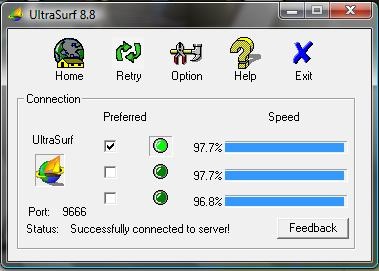
As you can see in the image below, you can select in between three proxy servers to connect for opening blocked sites with ultrasurf.

ultra-surf

You can check the checkboxes under preferred as shown in the image above for different proxy servers.

Other good to use features of ultrasurf includes the following.

  • Close IE automatically with ultrasurf exit.
  • Set IE proxy automatically.
  • Delete history automatically when program exit.

Download UltraSurf

If you have any problem in using ultrasurf please let us know through your comments I would love to help yo

Monday, 14 July 2008

Essential Web Development Tools

Developing a successful web site takes a great deal of planning and preparation. An important part of your preparation is obtaining the essential tools of the trade.

HTML Editors

An HTML editor is a software program used to create and edit HTML documents.

Although some Internet marketers prefer to write their own HTML code, most prefer to use an HTML editor, as it can greatly simplify a somewhat difficult process. However, using an HTML editor has its disadvantages, as some editors have a tendency to add a lot of unnecessary coding and may not support the latest technologies.

Whether you will be writing your own HTML or using an editor, taking the time to learn HTML is very important. Not only will you gain your independence, but you'll also have the ability to add special effects that many HTML editors don't support.

Here are some popular HTML editors:

Macromedia Dreamweaver
http://www.macromedia.com/software/dreamweaver/
A popular WYSIWYG (What you see is what you get) HTML editor. Great for beginners and advanced users alike.

Coffee Cup
http://www.coffeecup.com/html-editor/
A popular HTML editor that's great for beginners as well as advanced users. Includes a built in browser that will enable you to instantly preview your HTML as you go.

Hot Dog Professional
http://sausage.com/products/index.html
Three HTML editors, including HotDog Junior for children, PageWiz for the novice user and Professional for advanced and budding webmasters.

Text Editors

A text editor is a software program used for editing plain text that doesn't add any special formatting.

If you're considering writing your own HTML code, you'll need a good text editor. Although it will certainly be more time consuming, your code will be much cleaner and can reduce your file size considerably.

In addition to using a text editor to write HTML, it can also be used to edit scripts and write articles.

If you have a Windows operating system, Note Pad is the preferred text editor. It should already be installed on your computer.

Although Note Pad is a great little text editor, it can't handle large files and is much better suited for smaller jobs. You may find that you'd like an editor that is more powerful, such as:

NoteTab Pro http://www.notetab.com/
TextPad http://www.textpad.com/

FTP

File Transfer Protocol, better known as FTP, is a procedure used to upload and download files to and from your web server.

Although many HTML editors will enable you to edit and transfer pages to your server, an FTP program is still an essential tool, as you must have complete control over the files on your server.

An FTP program will enable you to upload scripts, set file permissions, create folders and transfer files to and from your server.

In order to use FTP, you'll need to download and install a software program on your computer. The most widely used FTP program is WS FTP Pro http://www.wsftp.com/

Graphics Editor

A graphics editor is a software program that will enable you to design and edit graphics.

Graphic design is an intimidating subject for many Internet entrepreneurs. However, most of us must learn some basic design techniques in order to avoid the high costs of hiring a professional designer.

The most popular program used by Internet marketers is Paint Shop Pro. This powerful program is the only program you'll need to design professional looking graphics.
http://www.jasc.com/

Zip/Unzip Software

A Zip file is an "archive" of one or more files compressed into one file for easy distribution.

Zip files are used to compress and transport file archives over the Internet. It is the preferred method used for electronic file distribution, as rather than downloading several different files, you can simply download one Zip file. In addition, the download time will be minimized, as the files within the Zip archive are compressed.

Once a Zip file is downloaded, it can be easily opened and extracted (unzipped) with a Zip/Unzip software program.

Although there are many Zip software programs available on the Internet, WinZip is the most popular. WinZip makes working with file archives simple. It features an easy point-and-click, drag-and-drop interface for viewing, extracting, adding, deleting and testing archived files.

You can download a fully functional evaluation version here:
http://www.winzip.com/download.htm

Email

Although most Internet Service Providers include email accounts for their customers, these accounts aren't adequate for an Internet business -- especially if you get a large amount of email. Not only do the email addresses contain your ISP's name, but they are also very limited on features and options.

The two most popular email clients used online are Outlook and Eudora. These programs will enable you to download email from your server and offer features, such as sorting and
filtering, and will enable you to easily organize your email messages. What's more, your email address will be your own domain -- not someone else's.

Eudora
http://www.eudora.com/
Outlook
http://www.microsoft.com/

Your webmaster toolbox will play an important part in your success. Take the time to ensure your toolbox contains these essential tools and you'll be well on your way to designing a professional web site.

10 tips for securing your PC


1. Update / patch ALL your software every now and then!

2. Check / adjust ALL your settings so they are safe, since they ARENT by default!

3. Use firewall, like ZoneAlarm!

4. Use good passwords: at least 13marks long, containing both letters and numbers. Remember to chance your password every few months atleast!

5. Get good anti-virus & Spyware softwares and keep it updated!

6. Don’t open or execute files that you are not 100% sure are absolutely safe no matter where or how you get them.

7. Wipe your historyfiles (like cookies, internet history and temporary files, etc.), logs and personal files, with specific wiping program (like Eraser) instead of just deleting them.

8. Use encryption to enhance your privacy! Use encrypted email (like Hushmail or Ziplip) and encrypt sensitive files on your computer (PGP).

9. Don’t use public computers for anything you need to type in your logins, they usually have Trojan horses that capture your passwords.

10. Don’t assume anything. If you don’t know, find out! If you cant or don’t understand, ask someone who knows! There’s nothing more dangerous than doing something you don’t really know anything about. That’s the best way to cripple your system or get a Trojan horse on your computer!

Add Safe Mode to Boot menu.

Safe Mode is most commonly used for troubleshooting purposes. If you find yourself booting to safe mode often. You may find it helpful to include the option for safe mode in your boot menu. Below, is a method you can use to save yourself from having to press F8 during startup to access Safe Mode:

-Right click My Computer and click Properties.
-Click the Advanced tab.
-Under Start Up and Recovery, click the Settings button.
-Click Edit. The boot.ini file will open in Notepad.


-Copy the line that reads as follows: multi(0)disk(0)rdisk(0)partition(2)\WIND

OWS=”Microsoft Windows XP Professional” /fastdetect.

Paste the line you just copied after the original one.
Change the copied line from “Microsoft Windows XP Professional” to “Windows XP Safe Mode” or something similar.
At the end of this line add the following: /safeboot:minimal /sos /bootlog.
Save the boot.ini file by clicking File then Save.
Restart your computer and Safe Mode should be available at the boot menu.
Note: Your actual Boot.INI may vary to a small degree. The above is an example only. Be sure to copy your boot.ini file prior to making any changes to it.

How to create a password reset disk

Here's an important tip… If you are using a password protected user account in Windows XP (and you really, really should be ) you might be nervous about forgetting your password. Well here's a way to put your mind at ease, at least a little bit. Windows XP allows users to create a password reset disk specific to their user account. This disk can be used at the welcome screen to reset your password in the event that you do forget it.

To create the disk: Go to start\control panel\user accounts. Select the account you are currently logged in as.

Under the 'related tasks' heading in the top left corner, click 'prevent a forgotten password' to open the forgotten password wizard. Insert a blank floppy disk and follow the instructions to create your password reset disk.

To use the password reset disk in case of emergency:

Once you have created a password reset disk for a specific user, the next time the password for that user is entered incorrectly at the welcome screen, a message will pop up asking if you have forgotten your password. At this point you can elect to use your password reset disk. Follow the instructions to reset your password.

Note: There are a couple of possible problems with the above procedure. For one, if you have used Windows XP's built in encryption feature to encrypt some of your files and folders, but have not yet updated to service pack 1, do not reset your password, as you will lose access to all the encrypted data. Once you have got service pack 1, it is safe to use the disk. Also, you cannot gain access to the reset feature if you have disabled the welcome screen on XP by using tip #31 above.

Keep your reset disk in a safe location, because anyone else can also use it to reset your password....

How To Enable Task Manager

Some Malware and Trojan often disable access to Windows Task Manager. Fortunately, a few quick Registry edits are usually all that are needed to regain control.


Here's how to do it:

  • Click Start
  • Click Run
  • Type REGEDIT
  • Click OK and The Registry Editor will now open
  • Browse to the following key: HKEY_CURRENT_USER\Software\Microsoft\Windows\CurrentVersion\Policies\system
  • In the right pane, look for the value: DisableTaskMgr
  • Right click DisableTaskMgr and select Delete. (When prompted with "Are you sure you want to delete this value", select Yes.
  • Now browse to the following key: HKEY_LOCAL_MACHINE\SOFTWARE\Microsoft\Windows\CurrentVersion\policies\system
  • In the right pane, look for the value: DisableTaskMgr
  • Right click DisableTaskMgr and select Delete. (When prompted with "Are you sure you want to delete this value", select Yes.
  • Close the Registry by choosing File | Exit
  • Restart your computer
You should now be able to access Task Manager. If not, reboot into Safe Mode and repeat the steps outlined above.

Trace Websites !

My Exclusive... another contribution to Computer Tricks !

Surfing Internet...
Type in the url and Hit Enter, that's it ?

But...
Have you ever thought what happens after that ?

Lets Trace n see what happens !

Do the following :
# Start >> Run
# Type cmd
# This will open the Command Prompt
# Type cd\
# Type tracert www.google.com

---------------------- Note ---------------------------
You can replace www.google.com with any website url.
---------------------------------------------------------

Results :
$ First line shows the IP address of the website... $ You'll be shown steps in which the website gets load !
$ More is the number of steps more is time taken to load the website !

That's all !

Please Comment...

Saturday, 31 May 2008

Prevent forgetting window password login

To prevent forgetting window password login, you have to create the password recovery disk which is made by these steps.

  1. In the Control Panel, select User Accounts.
  2. Choose the account you want to create the password recovery disk.
  3. Now click on the “Prevent a forgotten password” which is in the top left of the window.
  4. Then the Windows launch “Fotgotten Password Wizard“. Now you follow the step by clicking “Next“.
  5. Insert formatted disk in drive A. Then click Next.
  6. Type the password and Finish !
How To Recover Window Login Password in Welcome Screen?
  1. Click the password user list which is in the disket.
  2. Click on the Question Mark Button. (?)
  3. It appear the message “Did you forget your password ?“. Now you click the message “Use your password reset disk“.
  4. You are brought to Password Reset Wizard process. You just pursue the step. Your PC computer are working again.

Computer Viruses and What You Should Know

Computer Viruses and Malicious Code

These days with the proliferation of computers and computer technology it is inevitable that when things go wrong they do so on a larger scale. People can sit at home and write programs that insidiously invade computer systems both public and private. The consequences of these attacks can range from benign to extremely severe and the consequences can be extreme depending upon the system attacked

The computer simply executes instructions given to it. As such it is an extremely useful tool for the criminally inclined. When passwords and security mechanisms that are put in place to protect a system are breached, access is gained and a host system can be altered, its contents modified or infected with a latent virus or malicious code that will execute at a later date. This means that a system can be compromised, and although seeming to run smoothly will cause havoc when least suspected.

A computer virus is a program for the computer that is destructive, or designed to gather un-authorized information, or somehow impair the computers integrity. Viruses are malicious in nature and intent. . A Computer virus is a piece of code that can duplicate itself and spread via Floppy Disks, Networks and of course the Internet to many computers. Some can format your hard drive, erase your computers BIOS and cause programs to crash. A virus can copy itself or reproduce itself and infect another computer system without permission or knowledge of the user. A virus can only spread from one computer to another when its host is taken to the uninfected computer, for instance by a user sending it over a network or carrying it on a removable medium such as a floppy disk, CD, or USB drive or via an attachment in Email.


So what is the best advice to avoid viruses?1. Don’t open an email from an unknown sender
2. Don’t click on hotlinks on websites unless it is from a trusted site
3. Don’t open email attachments
4. Don’t inset software into your computer without first scanning for viruses and malware
5. Don’t allow Active X controls to be installed on your system
6. Use caution when visiting questionable sites
7. Avoid clicking on a box just because it is blinking or flashing

If you know you have a virus or malware, the only sure way to be sure it is gone is to reformat your computer.

You should also make use of precautionary software like “Ad-Aware”, “Spybot Search and Destroy”.

Make sure you have a good anti-virus program installed on your system and update it regularly. Some recommendations include:

Xoftspyse
AVG Antivirus (they have a free version),
NOD 32 Antivirus
Bit Defender

Remember computer health and integrity is everyone’s responsibility. Keep you computer free from viruses, spyware and other malicious software. These helps maintain the integrity and privacy of all systems.