Showing posts with label computer. Show all posts

Thursday, 13 October 2011

How To Close Non-responsive Programs By This PC Trick

computer , irresponsive


 Today I am going to share with you all a new pc trick to close a program automatically which is not responding. Many time my PC get hanged because some of my program not responding properly and then I have to turn off my computer. This will cause disturbance in the work. If your PC have the same problem then you can use this computer trick to get rid of this.
With a small registry tweak, Windows XP can be set to automatically close any program that 'stops responding' (crashes), eliminating the need for you to use the task manager to close down the offending software manually.
What you have to perform this pc trick:
1).Go to RUN and double click on it.
2).The you have to write REGEDIT in it.
3). Now your registry editor will open, Now double click  on HKEY_CURRENT_USER then choose CONTROL PANEL option after this choose  DESKTOP option as shown below in the screen shot os this pc trick.
4).Modify the REG_SZ entry AutoEndTasks with a value of 1.
That’s all . You have done with this pc trick. Try it and close non responsive program automatically.

Monday, 11 July 2011

STICKY NOTES TEXT FORMATTING IN WINDOWS 7

The Sticky Notes application is a very simple and useful application in Windows 7. It can be used to keep notes of To-Do Lists etc.

Launch StikyNot.exe and you can type notes at the keyboard

Customization can be done by right clicking a note to change its color, clicking the + sign on the note title bar to add another note and clicking a note and press Alt + 4 to close the note windows.

Notes are preserved even if you restart your Windows.

Text in a sticky note can be formatted using the shortcut keys:


Microsoft Internet Explorer Shortcut Keys

The followings are short-cuts for Microsoft Internet Explorer. Some keys are version specific

Use at your own risk.

Mouse shortcuts


Shortcut Description
Double-click (On a word) Select the word.
Triple-click Select entire line.
Wheel click Activate the Smooth scrolling
Hold Ctrl + Scroll Wheel forward Increase font size
Hold Ctrl + Scroll Wheel backward Decrease font size
Click one point then hold Shift & click another Create a selection from the two points


Keyboard shortcuts


Shortcut Description
F1 Help.
F3 Toggle on/off search panel.
F4 Pull down address bar.
F5 Refresh current page.
F6 Move focus to address bar.
F11 Toggle on/off full-screen mode
Alt + (Left Arrow) Go back on history. Same pas Backspace
Alt + (Right Arrow) Go forward on history.
Ctrl + A Select All.
Ctrl + B Favorites.
Ctrl + C Copy Selected.
Ctrl + E Search panel.
Ctrl + F Find (on page).
Ctrl + H Toggle History panel.
Ctrl + I Toggle Favorites panel.
Ctrl + L Open File. Same as Ctrl + O
Ctrl + N Open New browser window.
Ctrl + P Print current page / frame.
Ctrl + R Refresh. Same as F5
Esc Stop (while page is loading).
Ctrl + Enter Auto complete a url address. For example, type thecomputricks in the address bar and press CTRL + ENTER to get http://www.thecomputricks.com.
Ctrl + D Add the current page to favorite.

Simple Trick to Display Windows Version on Desktop

Simple Trick to Display Windows Version on Desktop Simple Trick to Display Windows Version on Desktop

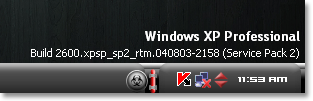
Most of you might have noticed Windows version on the desktop in the lower right-hand corner during beta releases of windows.Lets now see a quick trick on doing this in your windows platform.I tested this registry hack in Windows Xp, Vista and Windows 7 and its working fine icon smile Simple Trick to Display Windows Version on Desktop

Steps to show windows version on Desktop

1. Goto Start –> Run (Windows Key + R)

2. Type Regedit and hit Enter.

3. In Registry editor, navigate to this key:

HKEY_CURRENT_USER\Control Panel\Desktop

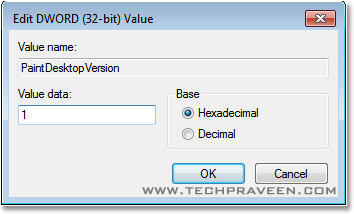
4. Select “Desktop” in left pane and search for “PaintDesktopVersion” in right pane and double-click it.

Show windows version on Desktop Simple Trick to Display Windows Version on Desktop


5. A dialog will pop-up, change the “Value Data” field from 0 to 1.

Show windows version on Desktop Registry Hack Simple Trick to Display Windows Version on Desktop


6. Restart the Windows you will find Windows version printed on the desktop.

Trick to Display Windows Version on Desktop Windows 7 Simple Trick to Display Windows Version on Desktop

Check Windows version on the desktop in the lower right-hand corner. icon smile Simple Trick to Display Windows Version on Desktop

Note:

If you wish to remove the watermark, just change the “Value Data” field back to 0.


Credits:http://www.techpraveen.com/2011/04/simple-trick-to-display-windows-version-on-desktop.html

Wednesday, 25 May 2011

FASTEST WAYS TO INCREASE PAGE RANK .

 This is one of a new experience for me and proved to increase the Page Rank of my blog / website .


In this post, I invite you who have a website / blog that want to introduce your website / blog to the world. The trick used to increase the Page Rank in this posting is to utilize the "backlink". Through the backlinks your website / blog you will quickly famous. The greater the backlinks your website / blog, the Page Rank will get better (more popular). This trick actually utilize one marketing system that is very well known, the system of "Multi Level Marketting". Instead you have to pay a premium to increase backlinks to your website, you better try this secret trick fast and easy.


How do I? Easy .... All you need to do is put these links into your article. (Starting from No.2 to No.. 10)


  1. Computer Tips And Tricks

  2. Computer Tips And Tricks

  3. Computer Tips And Tricks

  4. Computer Tips And Tricks

  5. Computer Tips And Tricks

  6. Computer Tips And Tricks

  7. Computer Tips And Tricks

  8. Computer Tips And Tricks

  9. Computer Tips And Tricks

  10. Computer Tips And Tricks

  Now you just COPY-PASTE this article. Replace link No.2 to No.1, No.3 become to No.2, and so on. No.10 link replace with your website or blog. 


Imagine if you managed to invite 5 people to copy article that you post, then obtained the number of backlinks:

Position 9 = 5 backlink

Position 8 = 25 backlinks

Position 7 = 125 backlinks

Position 6 = 625 backlinks

Position 5 = 3125 backlinks

Position 4 = 15 625 backlinks

Position 3 = 78 125 backlinks

Position 2 = 390,625 backlinks

Position 1 = 1953125 backlink


And all of them use keywords that you want. So, when another friend copying your article, traffic website / blog that is on the list, including you too will rise. 


I'm sure you'll see changes Page Rank your website / blog. Please copy this article, and then recommend to your friends, your friends will forward it, and so on. Easy .... Good luck this secret trick ..!!

Saturday, 2 April 2011

How To Lock Your Computer Using Mouse

We normally use Alt+Ctrl+Del or Windows+L to lock our PCs.Instead of trying those windows keyboard shortcut keys to lock Pc, lets now tryout something new icon wink Simple Trick to Lock Your Computer Using Mouse .Some might have already know this trick already…
1. Just Right click on the desktop, point to New and click Shortcut.
2. In the Create Shortcut dialog box, copy the following into the ‘Type the location’ of the item text box:
“rundll32 user32.dll,LockWorkStation” remove quotes while typing.
3. Click Next.
4. In “Type a name for this shortcut”, type LOCK MY PC and Click Finish
5. Now just double click on the icon, your desktop will be locked.
Though this is a age old trick.It makes some difference to newbies

Tricks For Deleting Computer Virus Posted

Author: Tony Novoa

Source: ezinearticles.com

Basic Guide to remove a virus from our PCIF annoying that you have suffered a virus installed on your PC and do not know how to remove it, I present here a guide with simple steps to eliminate the virus in your PC, but first, it is important to note that these steps are not permanent, due to the fact that there are many solutions for your problem.First, I suggest that you run antivirus software installed on your PC, I recommend you install an antivirus program, because more than one can cause conflicts in PC.Step One: The diagnosis.If know that your PC has been symptoms of a virus that can be: a restart of the PC, the operating system or programs take too long to load for no apparent reason, if the size ranges software from anywhere, if the hard disk space or a lack of reports without this necessarily so, if the files are displayed with strange names and extensions ghosts, so maybe your computer is infected with the effects of virus.Il first thing you have to do is run the virus software, including ones that I personally recommend are: Kaspersky, Avira, BitDefender, is not the cheapest, but they are really good scan your PC for viruses. There are also anti-virus software that offer their services online through their websites, such as BitDefender Online, if you're interested, here is their website (see website), another virus that I strongly recommend Ewido is just that Antispyware (please visit) and what it does is to detect espionage and software.Step Side Two: The elimination of the virus. First of all, I recommend that you disable System, antivirus protection, Restore, because there are viruses that have the ability to recover after each reboot, so it is necessary to navigate through the properties of my PC and check the box that inactivate System Restore or disable System Restore on all drives. After, antivirus protection, that, restart the computer, but now evidence of a failure mode, and then re-run virus checks before it was updated, to be sure, always check with BitDefender Online and Ewido online.Step Three: Testing disinfection. If you've been in all previous steps and your PC no longer shows symptoms of infection, the desirable thing to do would be to carry out daily checks with antivirus, Ewido and BitDefender. Another program I recommend is CCleaner to delete cookies and temporary Internet files, you must do to ensure disinfection was successful, in addition to that, I advise you to defragment the hard drive from time to time only to accelerate, antivirus protection, execute files and also have anti-virus software updated.Doing all this takes time, but you can be sure that after your PC is completely clean and ready for any virus that might show.

Tony Novoa System Engineer. Copyright 2009, (Please note source if reprinting this article.) Visit http://www.seekinusa.com, http://www.seekinusa.com/computers/basic-guide-to-eliminate-virus-from-pc.asp, for more tips, skills, and insight on computers, internet, sms, dating, relationships, love, etc.

Gmail - Mark All Unread Mail as Read Source

I'm a person like most others....who joined Gmail a long time back....and never cared to delete any of my emails...and neither did i care to read em all....


Consequently ... i have nearly 3000 emails in my gmail box from orkut,fb,linkedin and God knows where else.....


So a question pops up in my mind today.....'Is there a way to mark all of these as read so that i can get a proper count of 'new email' in my inbox?'


Apparently, there is.....so here comes the new TricksTerminal trick after a loong long time....


Steps
1. Open your Gmail Account
2. Click the Create a Filter link beside the search bar
3. In the Doesn't have: input box, type something wierd like kjdhaskf238098342
4. Click Next
5. Check Mark As Read option and also check the Apply to **** conversations
6. Click Create Filter button


And voila , your all done...
Finally some meaningful counts will show up on my inbox......


Facebook Photo Zoom - [Google Chrome Extension]


Going through our Facebook accounts has become a part of our daily routine..

And going through photos from the Home Page is something which most of us usually do..


But sometimes we're all too lazy to open a new tab/window for just viewing a photo...
wouldn't it have been much easier if i could simply hover over the pic...and zooom...i have the full pic...


Well....there is a way... and here comes the new TricksTerminal trick


Facebook Photo Zoom - A Google Chrome Extension


Facebook Photo Zoom is a simple, light-weight extension that integrates directly into Facebook so you can see the larger images of photo albums, profile photos and more whenever you hover over a zoomable image!  Easy to use: Hey, sometimes a zoomed photo can just get in the way, but why waste time clicking through to some confusing options screen just to turn things on and off? FBPZ integrates directly into Facebook to allow you to turn the photos off with a simple click, or even faster with a keyboard shortcut. 


Wednesday, 29 December 2010

How to access the sharing data offline

Access the shared data offline allows you to keep using your shared files, folders and software programs when disconnected from the data server. When you reconnect to your data server, all files will be synchronized to the files on the network.  
There are two types of configurations required to set the access shared folders offline available, one for data server and other for client computer. 
Configuration on Data Server.


First locate the folders that you would like to share or make new folders then share these folders so they can be accessible to any one on the network.
Now right click on that folder and click on the option "Sharing and security".


A small dialog box will appear with the title "data properties". Under the "Sharing" tab, select the check box "Share this folder on the network" under the "Network sharing and security".


Now set the share level permissions that you want to give the users on every folder. Enable cache of share folders by click on cache button (by default it will be enabled).


Configuration on Client Computer 
On the client computer, first open My Computer then click on Tools.
In Tools menu bar, click on Folder Options, a window will appear with the title Folder Options.
Under the Offline File tab, check the option Enable Offline File. Here you can choose the synchronization process "Synchronize all offline files when logging on", "Synchronize all offline files before logging off" and others.


Click on Apply button to save the settings and then Ok button to close this window.
Now sitting on the client computer, try to access the shared folder from the data server.
First Right click on the shared folder and Click on Make available offline.
To synchronizing the offline work from client computer to data server, again open My Computer then click on Tools. Click on Synchronize then click on synchronizing button.


After that down to data server and then try to access share folders by give the UNC (Universal Naming Convention) path of data server. But it will be accessible weather the server is down or up.

Saturday, 6 November 2010

Find and fix the hard drive problems

If your computer creating problems to read/write on the hard drive or may become unstable then it is possible that some lost clusters and bad sectors are on your hard drive. To check your computer hard drive for any errors, you can use scan disk utility. You should scan your hard disk on regular basis to maintain the status of missing cluster and bad sectors. In windows 2000 and XP, you can use the error-checking tools to check the health of your hard drive. 

  • Follow the given steps to run the error- checking tools: 

  • First open the My Computer then right click on any drive that you want to check. 

  • On the right click menu select the Properties option. 

  • Here select the Tool tab then run Check Now in the Error-checking dialog area. 

  • Under check disk options you can select both check box ”Automatically fix file system errors” and “scan for and attempt recovery of bad sectors” then press Start button.

  • This test will prompt you, if there is any problem on your hard disk and automatically fix it now.


  • How to make Greeting Cards with Word 2007?

    You can make homemade cards for your friends and family on any occasion if you don't get time to buy cards from the shop. You can make greeting cards with Word 2007. You can make greeting cards with Word 2007 for many occasions and events as well as the Get Well, Friendship cards etc. As you decide to make greeting cards with Word 2007, you can make one card for everyone or a customized one for every individual. You can later print them on a greeting card paper or just the regular one. Follow these steps in order to make greeting cards with Word 2007:
    Click on the Office Button from the top left corner.
    Click on New. The New Document window will open.
    From the list under Templates, click on Greeting Cards.
    You can choose the option you want from under the Greeting Cards section.
    You will be connected to the Microsoft Office Online site. You can select from hundreds of templates or you can go to this website in the browser and download the templates from there. 


    You can preview every template in Word and then click the Download button.
    The Office Genuine Advantage validation dialog box will appear. You might also have to download the updated version of OGA to be capable of downloading a template.


    You can customize the downloaded card by changing the colors, fonts etc or adding  your message before printing it.


    Now you can print the card. 


    You can make the holiday card even more personal by adding your own photos to it. You should always have greeting card paper by the side of your printer for ceremonious events.

    Free Public DNS Servers from Google

    Do you know Google also provides two free public DNS servers that you can use on computer to resolve domain names or URL, so that you can do website browsing faster and secure? Well.. these servers can be used as alternative to your current DNS service provided by your ISP. If you are not satisfied with your current DNS service, you can try to use this and compare the performance.

    You can enjoy following benefits by using these servers:

    Speed up your browsing experience:

    - Provisioning servers adequately to handle the load from client traffic, including malicious traffic.

    - Preventing DoS and amplification attacks.

    - Load-balancing for shared caching, to improve the aggregated cache hit rate across the serving cluster.

    - Prefetching name resolutions, overcome the limits of conventional, passive caching and aim to serve the majority of requests out of cache.

    - Providing global coverage for proximity to all users.

    Improve your security:

    - Securing your code against buffer overflows, particularly the code responsible for parsing and serializing DNS messages.

    - Overprovisioning machine resources to protect against direct DoS attacks on the resolvers themselves.

    - Implementing basic validity-checking of response packets and of nameserver credibility, to protect against simple cache poisoning.

    - Adding entropy to request messages, to reduce the probability of more sophisticated spoofing/cache poisoning attacks such as Kaminsky attacks.

    - Removing duplicate queries, to combat the probability of "birthday attacks".

    - Rate-limiting requests, to prevent DoS and amplification attacks.

    - Monitoring the service for the client IPs using the most bandwidth and experiencing the highest response-to-request size ratio.

    Are you ready to proceed? Make sure you write down the current DNS server addresses before configuring Google Public DNS, so that you can revert the change later if something goes wrong.

    So how to set it up? It’s very simple! What you need to do is to change your DNS servers information on your computer or router to 8.8.8.8 and 8.8.4.4. Here is the screen shot on changing the DNS setting in Windows XP.

    Google public DNS servers - 8.8.8.8 and 8.8.4.4

    If you have problem going to above TCP/IP properties page, check out these articles on how to set opendns information in Windows 7, Vista or XP.

    If you want to learn more about this Google public DNS, check out this Google site.

    Tuesday, 14 September 2010

    20 Computer Terms You Should Know

    A great deal of jargon is used when talking about computers, and it’s surprising how often these terms are used incorrectly. Even published, successful novels sometimes do so. The following list provides an explanation of some of the more common computing terms you may come across or need to employ in your own writing.

    Internet, World Wide Web

    The Internet is the network of computers we’re all familiar with. It’s quite common for the terms “Internet” and “World Wide Web” to be used interchangeably, but these aren’t actually the same thing. The Internet is essentially the wiring that allows computers all over the world to communicate. The World Wide Web is a system that operates via this wiring. Web pages are transmitted via Internet connections but there is more to the Internet than just the web. Many other types of data travel across the Internet too, for example email.

    Web Browser

    A program you use to look at, and navigate between, pages on the World Wide Web. Examples include Internet Explorer and Firefox although there are many others. Again, people sometimes refer to web browsers as “the Internet”, whereas they really only provide the means to view pages on the web.

    Bandwidth, Broadband

    Bandwidth is an indication of how quickly data travels along a connection. The greater the bandwidth, the faster data will be sent and received. Broadband is a rather vague term that refers to bandwidth somewhere above that of an old dial-up modem, although there is no precise definition of the term. Broadband connections are generally “always on”, unlike modem connections. There are various technologies which provide “broadband” speeds – such as ADSL, cable, satellite etc.

    Modem

    The word modem was originally coined in the days when computers communicated by converting numbers into sounds that could then be transmitted over a regular telephone line. At each end you needed a “modulator” to generate the sounds to transmit and a “demodulator” to convert received sounds back into numbers. From “MOdulator/DEModulator” came the word modem.

    With modern digital communication, no conversion to and from audible sounds is required, but even so it’s common to hear people talking about “broadband modems” or “ADSL modems” when referring to devices providing broadband connectivity. Strictly speaking, such devices are not modems at all as they communicate digitally but the word has stuck; its meaning has shifted to refer to digital devices as well.

    Memory, Disk Space

    Another very common source of confusion. In computing, “memory” generally refers to the temporary storage used by a computer whilst it is switched on. A computer loads programs and data into its memory in order to carry out tasks. This is more accurately called RAM or “random-access memory”. Disk space (or “hard disk space”), on the other hand, is a more permanent store that holds files even when the computer is switched off. It’s from here that the computer loads things into its memory. Strictly speaking you don’t store things in the computer’s memory as that vanishes when you turn the machine off.

    Virus, Spyware, Trojan, Worm, Malware

    These terms are often confused, although they have distinct meanings.

    A virus is a piece of software that can copy itself and which attaches itself to some other program in order to survive and replicate. It may have some malicious intent or it may exist simply to reproduce. A worm is similar but it can exist independently; it doesn’t need to attach to a separate program. A Trojan – or Trojan Horse – is a piece of software that gains access to a computer by pretending to be benign or by hiding within some innocent-looking application. The name is obviously derived from the wooden horse employed by the Greek army during the Trojan Wars. Spyware is software that secretly monitors computer activity, attempting to gain private information without the computer user knowing.

    By and large, all of the above will have some malicious intent – to harm data, spy on computer activity and so forth. Malware is a general term for all such programs – it simply means any software, of whatever sort, written with a malicious intent. Viruses are generally malware but there is more to malware than just viruses.

    Bits, Bytes

    At a basic level, all computer data is just a series of 0s and 1s. Each of these is referred to as a “binary digit”, for which “bit” is just an abbreviation. A byte is (generally) a collection of eight bits, so called because of the pun with bit and bite. Similarly a collection of four bits – half a byte – is sometimes called a “nybble”.

    In order to refer to large numbers of bits and bytes, various prefixes are used, as in :

    1 kilobyte = 1024 (or 1000) bytes

    1 megabayte = 1024 (or 1000) kilobytes

    1 gigabyte = 1024 (or 1000) megabytes

    1 terabyte = 1024 (or 1000) gigabytes

    1 petabyte = 1024 (or 1000) terabytes

    Reboot

    To switch a computer off and on again, allowing its operating system and programs to be reloaded. Note that this is not the same as placing a computer into standby/hibernate and then resuming. A reboot requires that all software is completely reloaded.

    The term derives from “bootstrap”, as in the phrase “to pull oneself up by one’s bootstraps”, because of the similarity to that seemingly impossible act (as a computer can’t run without first loading some software but must be running before any software can be loaded).

    Cookie

    A small text file sent to your computer by a web site you have visited. These can be very useful in that they can allow the web site to recognize who you are when you return. Cookies cannot store viruses or other threats, although they can be used to track your activity across different web sites in order to provide, for example, “targeted” advertisements.

    Firewall

    A firewall is a piece of computer software or hardware that restricts the data that is allowed to flow through. Firewalls block traffic that is undesirable in some way, the intention being to prevent infection by malware and so on without restricting the user from carrying out legitimate activity.

    Spam

    Unsolicited email messages sent out in bulk and generally commercial in nature. In fact the term is used more widely these days to refer to such messages in a variety of places, not just on email – for example comments on blogs.

    The origin of this sense of the word spam is unclear.

    CAPTCHA

    CAPTCHA checks are the strings of letters and numbers that have to be typed in on some web pages before something can be saved. They exist because, although humans find interpreting these strings relatively easy, computers do not. Setting up these checks therefore blocks an automated process – such as one generating spam – from using the page, whereas a human is still able to.

    The acronym CAPTCHA actually stands for “Completely Automated Public Turing test to tell Computers and Humans Apart” – a rather contrived way of arriving at an acronym that sounds like the word “capture”.

    Put Your Facebook Friends Into Categories By Adding Them To A Facebook Friends List

    When I started to get too many Facebook friends I started to wonder how I would remember who they were and why I became their friend in the first place. It’s not like the real world you know. I have random friends that I have never even spoken to but have something in common with me.

    I thought about culling my Facebook friends down to a manageable size, but that’s mean. Who would I choose to boot out? I couldn’t handle getting asked “why aren’t we friends anymore?” OMG I am glad this is not a face to face friend saying this to me. Anyway, just because these people are not in my real life and will not be invited to a BBQ at my house, unfriending them could still hurt their feelings. Therefore I decided to put my friends into categories by adding them to a particular list on Facebook.

    How to add a Facebook friend to a list to categorize them?

    Sorry if this sounds like herding cattle, or turning your friends into numbers, some things just must be done.

    1.  When you find a new friend and click on “Add as a friend” a box will appear. See below.

    facebook friend category list

    2.  Click on the Add to list button and a drop down menu will appear.

    3.  If you do not have any friend lists then it will ask you to create one.

    4.  If you have lists you can simply click on one to add this new friend to it.

    5.  Click on Add a personal message to write a quick note to the person to let them know why you are requesting to be their friend.

    6.  Now click on the Send Request.

    7.  If this person accepts your friend request they will be added to the friend list you chose earlier.

    8.  If they do not accept your friend request nothing will happen.
    A Solid State Hard Drive is the newest technology when it comes to hard drives for your computer. Well its not totally new but it might be for you. Of course I do not need to tell you that a solid state drive (SSD) out performs any predecessors from the past as any new technology would. In fact we are moving towards an almost permanent storage device that could possibly allow your data to outlive you.


    Comparing a Solid state hard drive to a normal hard drive that we have now:

    1. A solid state hard drive does not have moving parts therefore it is longer lasting.

    2. It is completely silent whereas the older type hard drive makes working noises with its moving parts.

    3. A normal hard drive is fragile and only has to be bumped to be damaged. It only needs a piece of dust to hamper its operation. A SSD

    4. A solid state hard drive can access your files faster and open programs quicker. A normal hard drive has to start spinning to access the files, whereas a solid state just accesses the files.

    5. It uses less power. Image what this means for laptop users? All the memory is handled by flash memory chips like our Random Access Memory (RAM). No need to drain power when motoring the spinning parts to access the data.

    Advantages to buying a solid state hard drive:

    1. Newest hard drive technology.

    2. Access files faster.

    3. No moving parts, therefore less can go wrong.

    4. A safer place to store your precious files and data.

    5. A power saver. A Greener option.

    Disadvantages to buying a solid state hard drive:

    1. Because the solid state hard is new technology it is still very expensive. We all know the price will come down as time goes by.

    2. The largest SSD (Solid state drive) to this day is the 160 GB SATA Solid State Drive however the normal hard drives are 2TB for the same price.

    Should I buy a Solid State Hard drive?

    Do I think its worth paying a crazy price for a hard drive that is fantastic in every way? Yes of course I do. The first reason is that I am a typical computer user and need to access my files at lightning speeds. Even two seconds delay is too long now days. When I open a program I want it to be there on my screen in a split second. The days are gone when you started your computer, made a cup of tea, and then returned to start using it after it loaded.

    As for the limited storage, this does not affect me. I try not to store files on my computer and religiously save everything on an external hard drive. This way my operating system has the main hard drive all to itself.

    What is a Hybrid Solid State hard drive?

    A hybrid Solid State Drive is a mixture of both the old technology and the new. The Seagate Momentus XT 500GB Solid State Hybrid Drive was the first hybrid on the  market. It retails for around $129 USD. It has proven Solid state like performance but without the hefty price. The only thing is it still has moving parts and can be fragile but the speed of access is definitely there.

    From the Manufacturer

    The Seagate® Momentus® XT drive enables laptop PC users to enjoy solid state-like performance without sacrificing storage capacity and affordability. The Momentus XT solid state hybrid drive utilizes Adaptive Memory™ technology to dynamically optimize performance by aligning to user needs. This perfect balance of SSD and HDD delivers low heat, noise and vibration, and is available in capacities up to 500GB.
    How do you install a solid State hard drive?


    Most SSD’s are 2.5″ which is the size of a laptop hard drive. They are connected to your motherboard via a SATA connection which most modern computers do posess. You can also buy a metal 3.5″ bay adapter which helps you install this small hard drive into a normal sized desktop computer.

    Different hard drives of a computer

    What is a hard drive? Often people think a hard drive is their entire computer system as they see it, and others think that it is something hard or solid in the computer. It actually is a storage device inside your computer, and yes, it is hard. . This is hiding inside your computer and is where all your data is stored when you save it. You may never see your hard drive unless you happen to open up your computer to fix a problem. A hard drive is merely one of the many components that contribute to your computer system as a whole.

    What is the difference between Hard disk and Hard drive?

    It can be confusing when someone is talking about a hard drive and you call “it” a hard disk or hard disk drive. You think to yourself “what are they talking about?” Well this is crazy, but they are talking about the same thing. A hard disk and a hard drive have been made up over the years. Originally the main storage device was called a hard disk and we had floppy disk drives. Eventually the words got mixed up and blended.. That’s my theory anyway.

    3.5″ Desktop Hard disk drive:

    The picture below shows a 40 gigabyte (the size or capacity) hard drive, 7200RPM (the speed or revs per minute). The 3.5″ hard drive is pictured on the left. We used to only have one option when buying a hard drive, however now there are three or more types to choose from. See more pictures of hard drives.

    2.5″ Laptop Hard disk drive:

    A laptop hard disk drive is considerably smaller than a normal desktop hard drive and also cost more. If you wanted to buy a 500gb laptop hard drive it would be very expensive, whereas a 500gb desktop hard drive is around $100. See more laptop hard drives.

    desktop and laptop hard drive

    Cd rom or DVD Drive:

    dvd cd disc drive

    This is where you put a cd rom or a DVD disc in. It could be a drive that can also read and write on cds or DVD disks. Plain old Cd roms are nearly obsolete as everyone now wants a DVD burner.. With dvd rom drivesyou can backup your dvd’s onto a DVD writeable disc. There is no point buying a cd rom when dvd rom drives are the same price and have more features.

    Floppy disk drive:

    This is the smaller drive that takes those little plastic square shaped disks. They are rarely used now as they are no longer needed for a boot disk if you have a cd rom or DVD burner. In fact most new computers are sold without a floppy disk drive as they are obselette.

    Floppy disc drive Floppy drive

    External Hard drive:


    An external hard drive can come in two sizes like the desktop hard drive and the laptop hard drive. After all an external hard drive is just a case housing one of these hard drives. So if you have a 2.5″ external hard drive , this means it contains a laptop hard drive.

    Now days we every second household owns an external hard drive. They are used to store files on safely away from the computer you are working on. For example, you can save your photos onto an external hard drive and if your computer crashes they will still be safe because they are not stored on your computer. There is no excuse if you do not own one of these fantastic storage devices as you can buy a 1 TB external hard drive for well under $100. That size hard drive can hold thousands of movie, songs, and more… It will store everything.

    external hard drive disk

    Facebook smiley faces on chat – Add a smiley face to Facebook chat

    If you are into chatting on Facebook and communicating your lungs out without actually speaking then this Facebook chat trick is for you. I personally do not chat on Facebook but I know both my daughters are clearly engaged with anything to do with this website. In fact I never see my children and if I want to get them to do something I need to contact them on Facebook.  What is the world coming to?

    Anyway that is enough of my opinion and lets get onto the cool smiley face tricks for chatting on Facebook. You will notice that these smileys codes are kind of similar to forum smiley code.

    Facebook chat trick – add a smiley face to your Facebook chat. These codes do not come up properly on this Website so I have posted the true list on the forum.


    :)
    smile, much better in real life though…

    :(
    sad face, how can be sad you are on Facebook? Get over it!

    :D
    really happy, its really sad that you are really happy about this…

    ;)
    wink, sleazy..don’t use it!!

    ^_^
    happy eye face, ok whatever..

    >:-(
    grumpy face, maybe you would be happier if you were getting some vitamin :D …?

    :3
    cat face, why would you want this?

    :’(
    crying face, how embarrassing, do you want attention?

    :o
    shocked face, I was shocked too when I found out that you could look so shocked!

    8)
    glass face, hmmm..don’t crack a smile then..

    B)
    same as above, oh how boring, this one is a copycat!

    8-|
    cool shades, we all want to be cool.. that is why we are on Facebook..

    :P
    rude face, I know someone that cried when they saw this..

    .O.o
    woot!, we won’t even go there…It’s all too much for me.

    -_-
    dork face, you shouldn’t pick on people, even online…

    :/
    duhh, like saying I told you so, or you are an idiot, or your brainless..

    <(“)
    peguin, please tell me why you would want to use this..Does it mean anything to you?

    (^^^)
    jaws, same as the penquin thing…WT??

    3:)
    devil, this is when you have been naughty? Hope my kids are not using this one!

    O:)
    angel, only good people can use this, otherwise the Facebook Gods will get you..

    :*
    kiss face, you can kiss all you want on Facebook, just not in real life!

    <3
    heart, this is a cute one so I will not bag it out…

    :v
    pacman, how 80′s is that? Didn’t pacman die with the Atari?

    |]
    robot, don’t get this one, I guess you will just have to try it.

    :putnam:
    guys face, who cares…we have profile pictures you know..

    Tuesday, 24 August 2010

    10 Tricks With A USB Thumb Drive

    Any ordinary USB memory device can do a lot more than you probably thought it could. It can carry programs, encryption and even a full installation of Windows XP! Here is our tenlist for the coolest things you can do with a USB thumb drive:

    Take your programs with you

    We all know how frustrating it is when we take your files to another computer just to discover that the software required to read the files is not installed.

    Here’s the simplest solution – take your programs with you – on your USB thumb drive. Here’s how to do it with Portable Apps:

    1. Go to the Portable Apps website and download the installer, choosing the software you want to carry along.

    2. Run the installer and install the software to the root of your USB thumb drive.

    And you’re done! As soon as you connect your thumb drive into a computer, Portable Apps will open up automatically.


    Surf anonymously

    With Portable Apps and Firefox, you can surf the web without leaving any trace on the computer you are using. If you want extra security, install a Firefox security plugin such as FoxyProxy. To iput Firefox onto the drive, just copy-paste the Firefox folder from you computer, or install Firefox onto the thumb drive.


    Set a program to run automatically (autorun)

    Using autorun, you can set a program to start up automatically when you connect the drive to a computer. You can also use the same script for a data CD-ROM. Note that some computers have autorun disabled for security purposes. [Here's how to disable autorun.]

    Open up notepad and paste the following script:

    [autorun]

    ShellExecute=filename

    Label=description

    UseAutoPlay=1
    Make sure you replace filename with the full path to the file. For example, a file called program.exe in a folder called “programs” on the thumb drive would be /programs/program.exe

    Replace description with a short description of the program, for example, My Jukebox or Mozilla Firefox.

    Save the file as autorun.inf, making sure you select “All Programs” from the save menu, not “Text document”!


    Help! I’m lost!

    Ever lost a USB drive? Even if you haven’t, there’s a pretty good chance you’ll lose a few during your life. And with all the important information on it, it could be a disaster to have it fall into someone’s hands.

    A good idea is to encrypt all the information on the drive, but you would still want it back, wouldn’t you? Luckily, the folks at the Daily Cup Of Tech have come up with a solution.


    Save a program called “Help! I’m Lost!” on the drive, that a finder just can’t get around opening. The program opens a message box with your personal “I’m lost” message. It’s a good idea to offer the finder a bigger reward than the drive itself, so that they’ll be interested in contacting you.


    Hide the drive inside something

    Why not surprise your friends and co-workers by sticking something that looks like a broken USB cable into the computer’s USB drive?

    You’ll be sure to get a few shocked faces when you start to play a movie from it.

    The guys from Technobuzz.net show us how to do it. (You are gonna need an unbelievably small thumb drive for this…)

    Secure your PC

    Just like with an RFID badge, you can use a USB drive to lock and unlock a PC. Insert it to begin working and pull it out when you’ve finished, locking the computer. There are several programs for this . Rohos, a commercial program and WiKID, a semi-open source one.

    If you really need to secure your computer with a USB drive, I suggest you give Rohos a try, as WiKID is rather complicated.

    Portable jukebox

    Don’t just carry the music with you, also carry the player! You can install audio programs such as WinAmp and CoolPlayer+ on your thumb drive. Just unextract the ZIP folders to the USB drive.

    If you want the jukebox to start up automatically when you connect the memory stick to the computer, use the autorun feature shown tip 3 and point it to the exe of your audio player.

    Encrypt your data

    If you carry any sensitive indormation on your USB memory stick, a good idea is to encrypt it. Hardware-level encryption will help, but it will cost extra. You can get a free program to encrypt your data just as securely. For this I recommend TrueCrypt, but most others will also do.

    You will need admin access on the computer you want to use your encrypted thumb drive on, so this it’s usability a little.

    Run a standalone OS for dedicated tasks

    The easiest OS to boot from a USB drive is probably Linux. There are many small capacity Linux versions out there that will fit on your drive. The best 3 are Puppy Linux, Damn Small Linux and Webconverger.

    Make sure you select a version that needs less space than your USB drive’s maximum, so you have room for files and software.

    And this leads us nicely to the final tip…

    Run Windows itself from a USB thumb drive

    Modifying Windows to work on a USB drive is quite difficult, but luckily there are some tools that will do it for us. Note that you will need a separate Windows license for this, as Microsoft only lets you use one for each single computer, and a USB drive is treated by them like a computer…

    What you’ll need:

    1. A licensed copy of Windows

    2. A USB device, min. 1GB (We recommend a USB hard disk, as a flash memory stick will become unusable after 100000 writing processes. Assuming that only 2 processes are used per second, the drive will last only 60 days with 8 hours of work each day… A hard disk doesn’t have this problem.)

    Here is the link to the full tutorial, translated from German.